
Automatically Create SharePoint Folder Structure Based on Specific Table in Dataverse Using Cloud Flow (Part 3 of 8)
This is the third post in a series of Automating SharePoint Integration with Dataverse using Power Automate. You can check out the other posts via these links (Part 1, Part 2, Part 4, Part 5, Part 6, Part7, Part 8)
In my first post, I have explained how to automatically create the SharePoint Document Location using the cloud flow when a new row is added to the Dataverse/Dynamics 365 table. But if you want to automatically create the folder for the tables related to a specific Account or Contact, you need a few additional steps to create the subfolders under the Account/Contact folder.
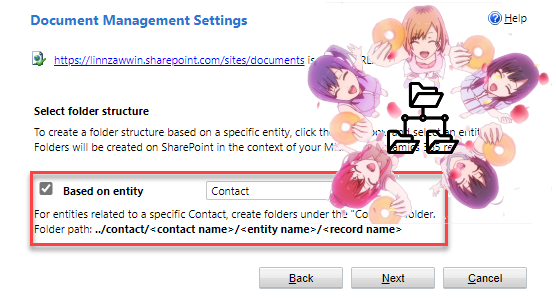
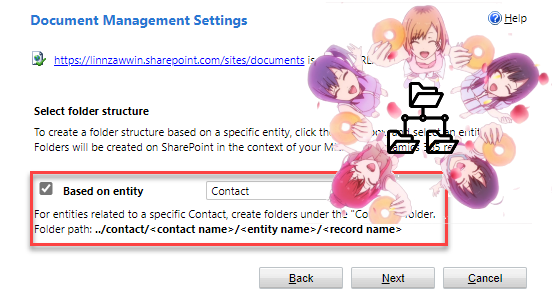
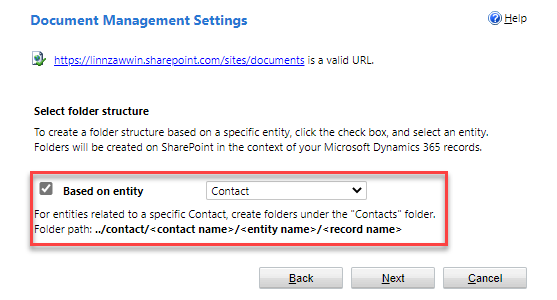
In this post, you will learn about how to automatically create the SharePoint Document Location as a subfolder under the related Account/Contact folder. The SharePoint folder of the tables related to a specific Account/Contact are created as the subfolders under the Account/Contact folder when the Document Management Settings is configured as below and either Account or Contact is chosen to be based on.
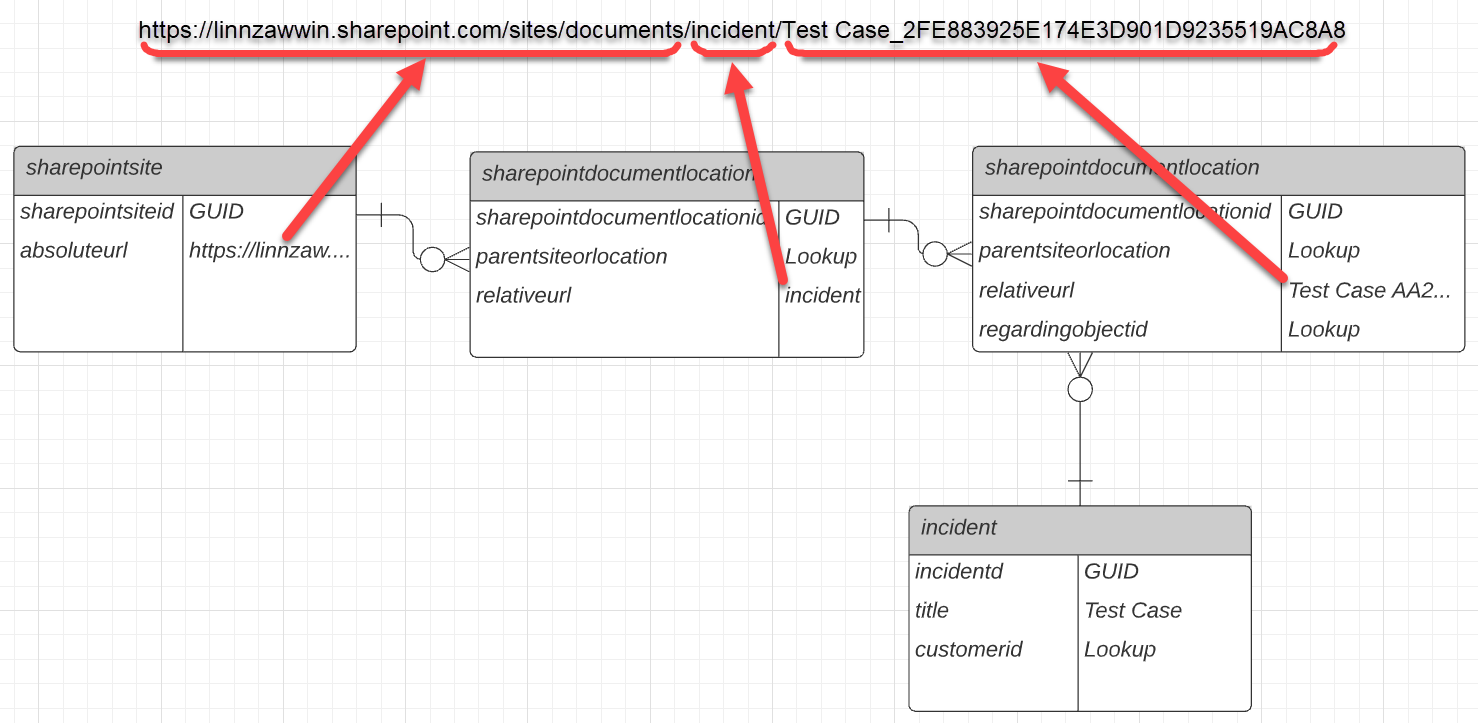
Before we jump into creating the cloud flow for this solution, I would like to explain a little bit about the folder structure based on a specific Account/Contact. As an example, I will use the Case table related to the Contact table (via Customer lookup) for the following ERD as well as the cloud flow below but it can be applied to any other table with document management enabled and related to Account or Contact.

The diagram is similar to the one in my first post but the there are two more additional Document Locations for the Case in this diagram. Since the folder structure is ../contact/«contact name»/«table logical name»/«row name», the SharePoint folder for the Case is created under incident folder under the SharePoint folder for the Contact. Since the Relative URL of the Document Location does not contain "/" character, each folder name between two forward slashes "/«folder name»/" need to be created as the Document Location. Since the incident folder is not related to any specific row, regardingobjectid lookup for that Document Location is empty.
These are all the steps included in the cloud flow for this solution.
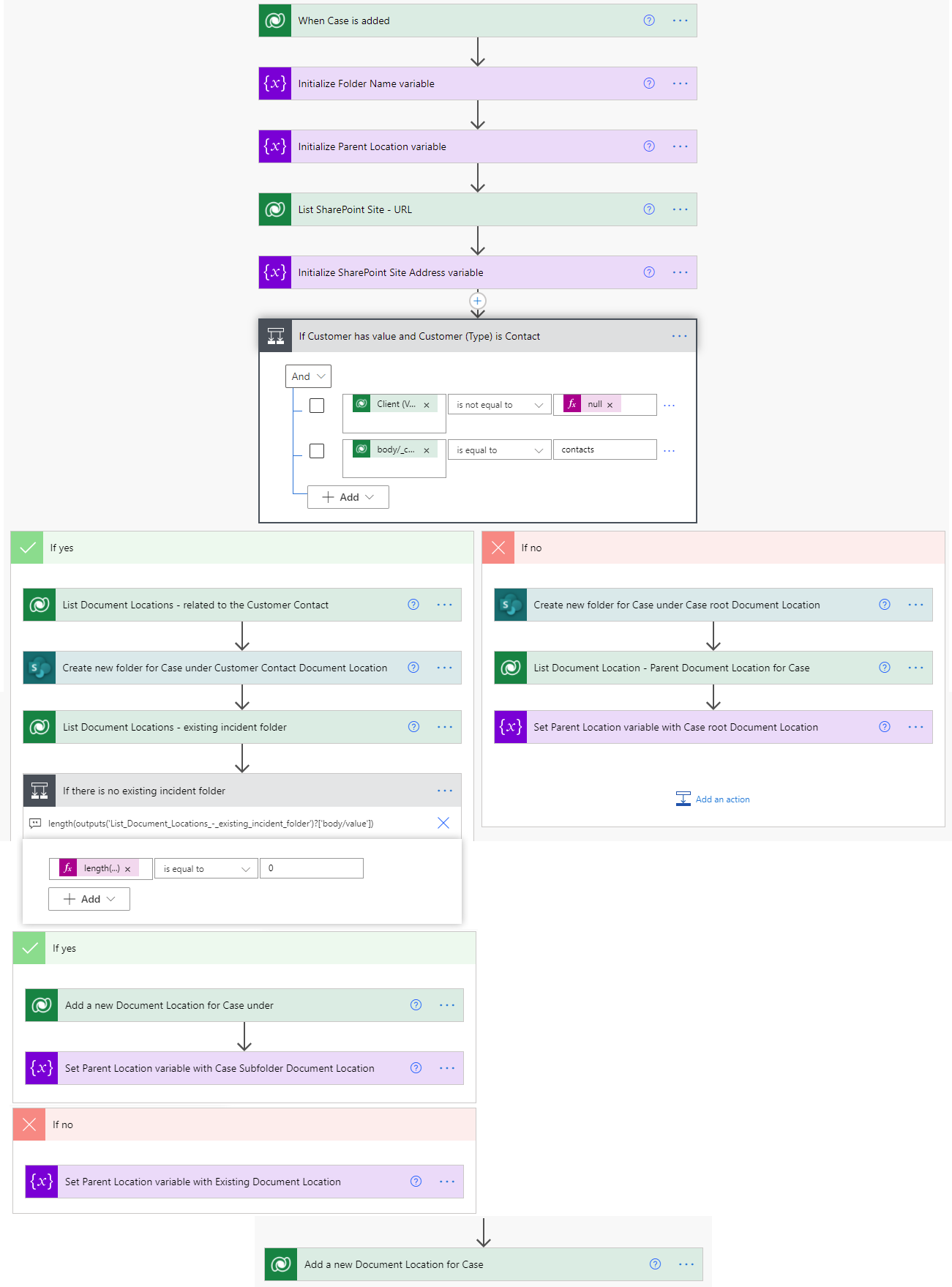
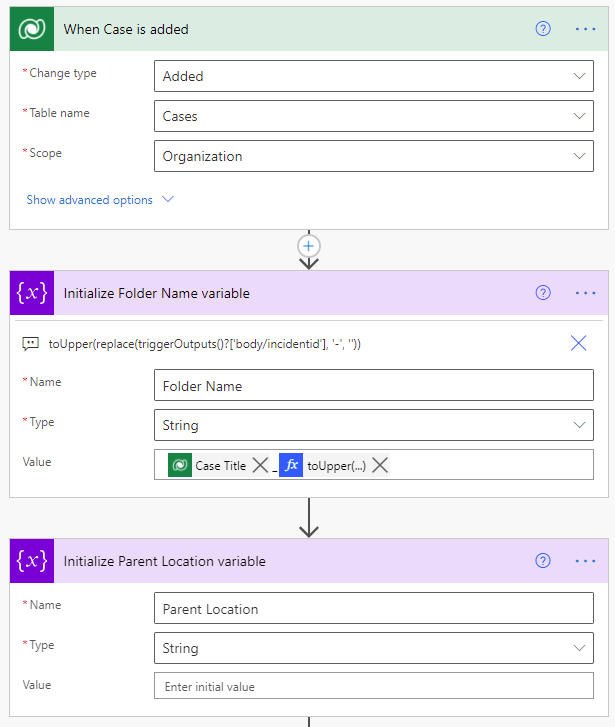
The trigger is just on Create of the Case. The folder name is initialised as a variable with the format of «case title»_«incidentid in uppercase without '-'»
toUpper(replace(triggerOutputs()?['body/incidentid'], '-', ''))
Parent Location variable is to store the Document Location GUID to set as the parent for the case folder in the last step.
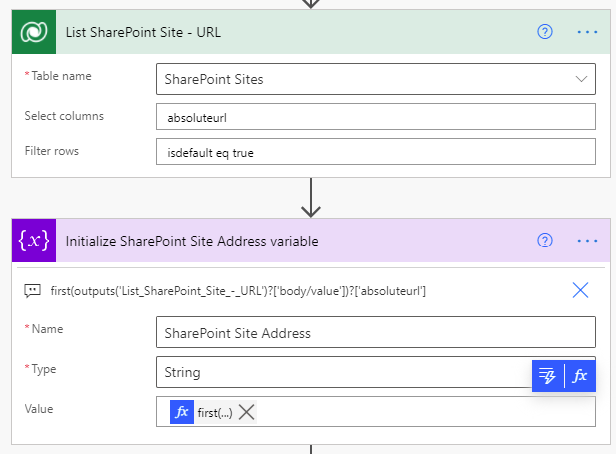
The next step is to get the URL of the SharePoint site so that the Site Address can be dynamically populated and deployed to different environments without having to be changed. The site URL is then, set to the variable since it will be used in a couple of places.
first(outputs('List_SharePoint_Site_-_URL')?['body/value'])?['absoluteurl']
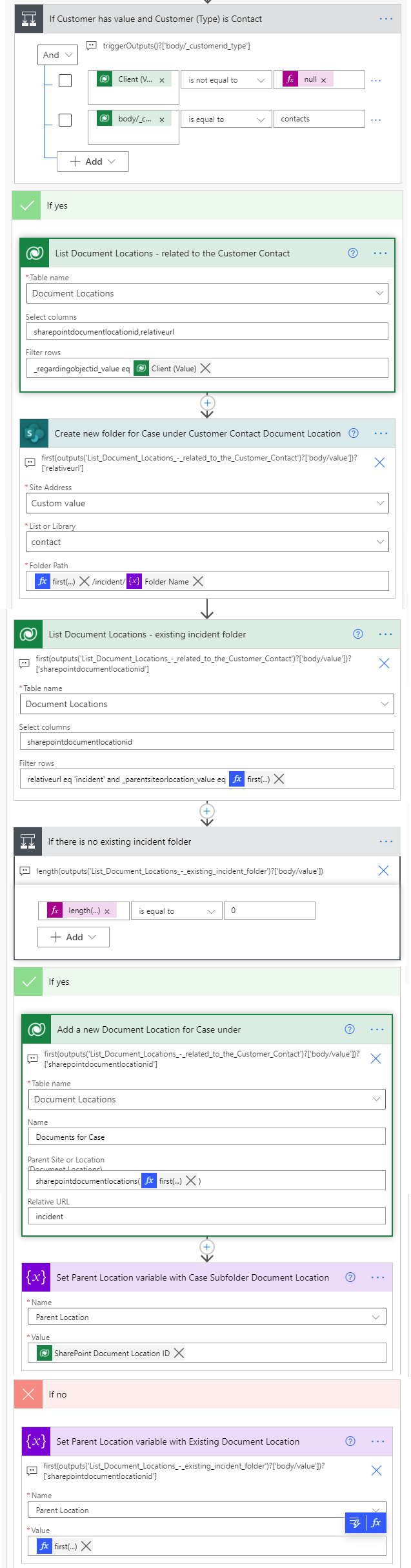
triggerOutputs()?['body/_customerid_type']
The output of the trigger is different from the Get a Row by ID or List Rows actions. Read Alex Shlega's blog post for more details.
First of all, retrieve the Document Location of the Contact related to the Customer lookup value. Then, use the relativeurl from the retrieved Document Location to create the SharePoint folder under the Contact library. In this step, populate the Site Address parameter with the SharePoint Site Address variable.
first(outputs('List_Document_Locations_-_related_to_the_Customer_Contact')?['body/value'])?['relativeurl']
Then, List Rows action to retrieve the existing "incident" Document Location under the specific Contact. If there is no existing one, create the Document Location for the "incident" folder under the Contact SharePoint folder by setting the Parent Location with the result from the step above. This Document Location is not related to any particular data so that the Regarding lookup will be empty. Set the GUID of the newly created Document Location in this step into the Parent Location variable.
first(outputs('List_Document_Locations_-_related_to_the_Customer_Contact')?['body/value'])?['sharepointdocumentlocationid']
If there is an existing Document Location, set the Parent Location variable with retrieved value.
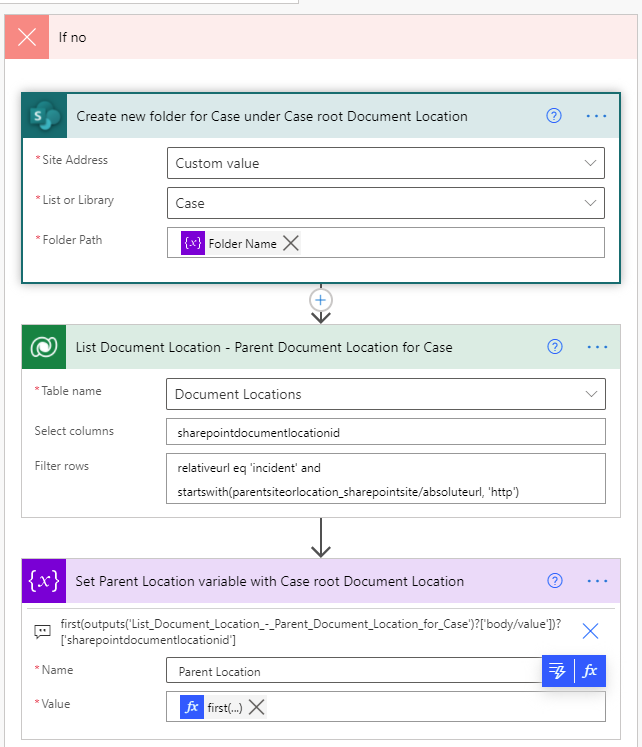
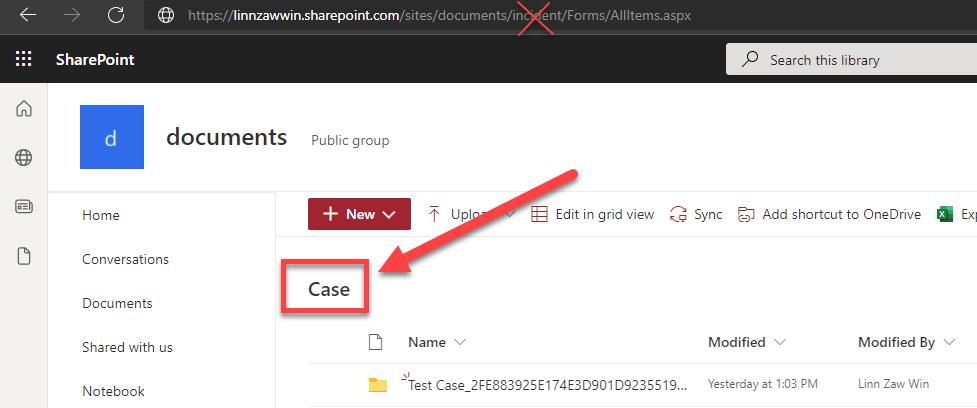
This is for the second scenario where the Case is not related to the Contact and the SharePoint folder is created under the root "incident" SharePoint document library. Just like the other SharePoint step, populate the Site Address parameter with the SharePoint Site Address variable. For the List of Library parameter, populate with the name of the library "Case" and not to be confused with the URL of the document library "incident"
The next step is to retrieve the parent Document Location for the Case document library and set it to the Parent Location variable.
first(outputs('List_Document_Location_-_Parent_Document_Location_for_Case')?['body/value'])?['sharepointdocumentlocationid']
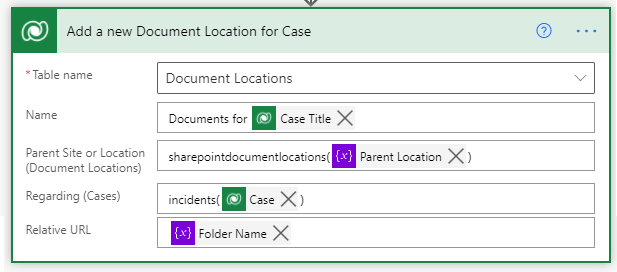
Summary
Automatically creating the SharePoint document folder for the tables as subfolders under related Account/Contact can be achieved by covering two scenarios:
- Create the SharePoint folder under the related Account/Contact folder
- Create the SharePoint folder under the root document location if there is no related Account/Contact
Published on:
Learn more
Need help with this product?
We can help you with Automatically Create SharePoint Folder Structure Based on Specific Table in Dataverse Using Cloud Flow (Part 3 of 8)
If you want help implementing, troubleshooting, or improving this product, contact us and we’ll point you in the right direction.

Related posts
Tracing Undocumented Application Users in Dataverse
2 months ago