
Populate SharePoint List mulitple choice column with Microsoft 365 Groups-and add some List formatting

Recently, a customer asked me if I could automagically populate Microsoft 365 Group Names to a multiple choice column in a SharePoint list. Of course I told them that one can create an ootb Person field and allow group selection, but that not quite what they wanted. So I built a simple Power Automate flow that would populate the choice column and and applied some nice list formatting to it.
The Power Automate flow
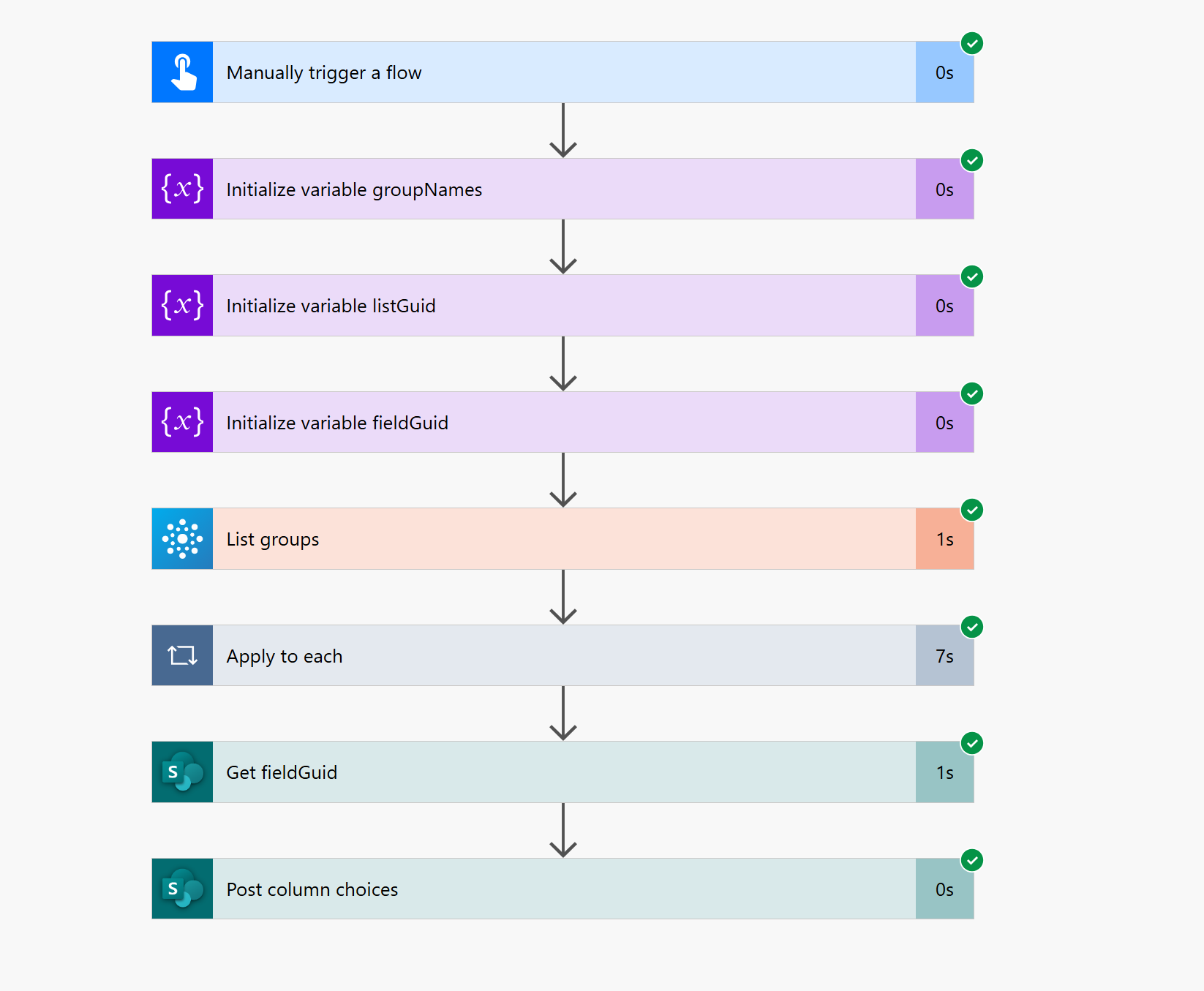
Get your groups
- We trigger the flow as per our needs (manually, if there is not a lot of change in groups) or on a schedule (if there is a lot of changes in groups)
- we then initialize a variable (I used string, but you can also do an array) for the
groupNames - then we use the Azure AD Groups - List Groups action to list all groups. Filter if needed!
- Then we append the
Name(and a comma) in a loop to ourgroupNamesvariable
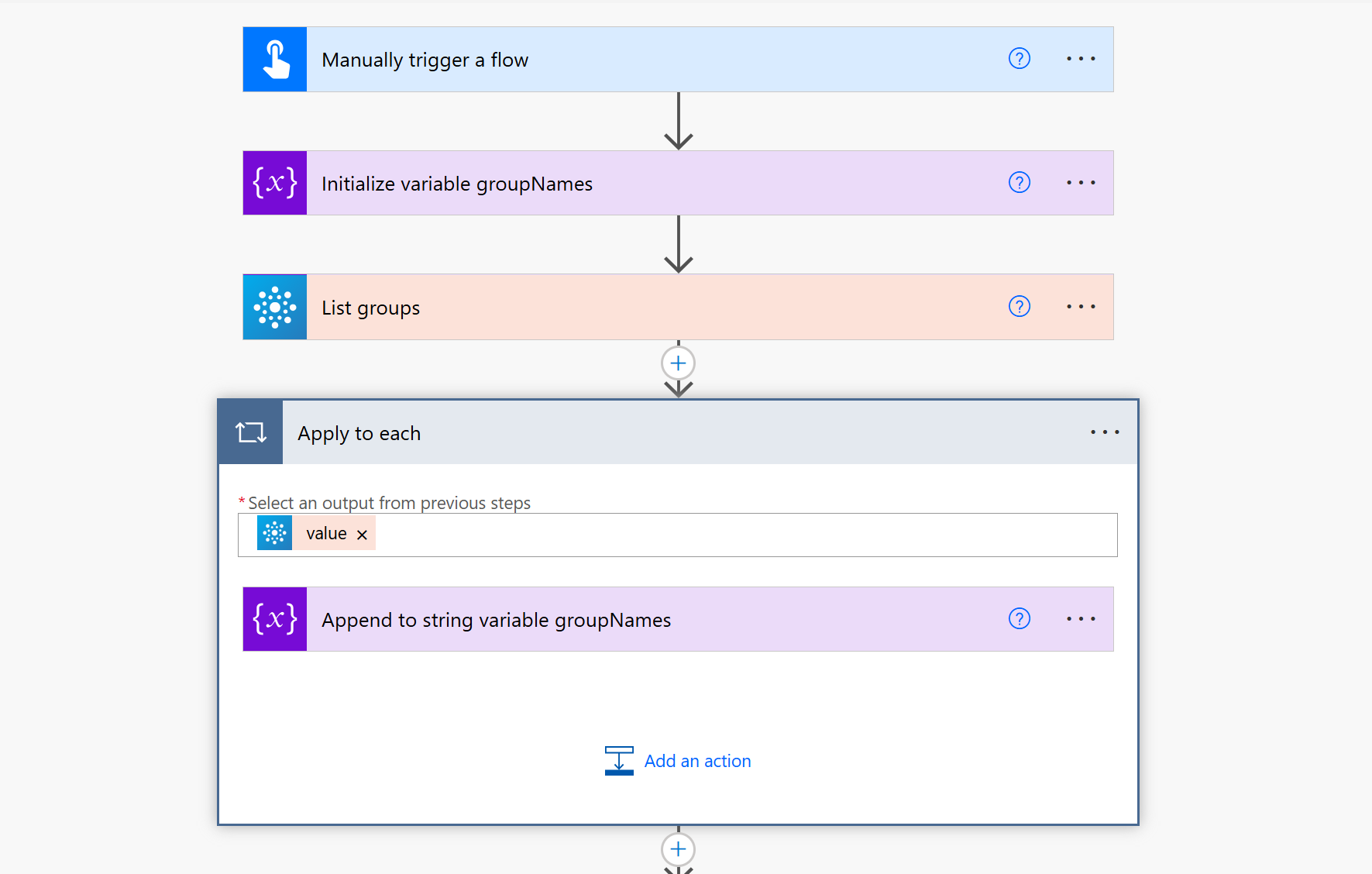
Obtain listguid and fieldguid
Now we need to obtain 2 things
- the listguid of our SharePoint list: Select the Settings gear ⚙️ on your list, List Settings, you will find it in the URL. The List guid sits right in between
%7Band%7D(Of course there are a gazillion of other ways to obtain this, but that is a super easy one) - the fieldguid of the field that we are trying to populate: You can either follow this post here or stick with me and:
- Use Send an HTTP request to SharePoint
- Method: Get
- URI:
_api/web/Lists/GetById('@{variables('listGuid')}')/Fields
This will return a massive json object from which you can now find the id of the field you are interested in.
Patch the choice column
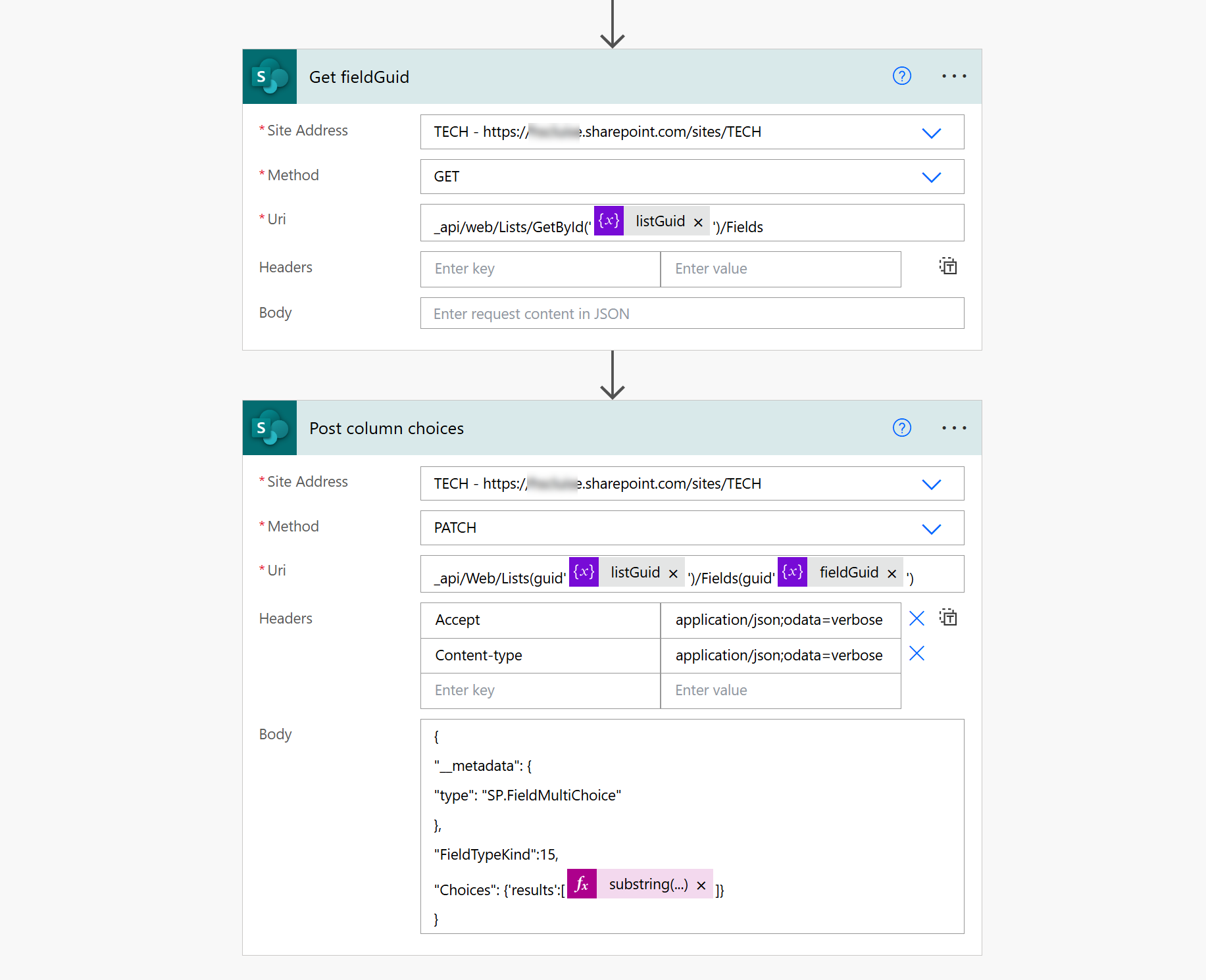
As a last step, we just patch our choice column with the groupNames. As we comma-separated the variable, we need to make sure that we remove that comma now:
- Use Send an HTTP request to SharePoint
- Method: Patch
- URI:
_api/Web/Lists(guid'listGuid')/Fields(guid'fieldguid') - Headers:
- Accept: application/json;odata=verbose
- Content-type: application/json;odata=verbose
- Body:
{
"__metadata": {
"type": "SP.FieldMultiChoice"
},
"FieldTypeKind":15,
"Choices": {'results':[@{substring(variables('groupNames'),0, sub(length(variables('groupNames')),1))}]}
}
If we now check in SharePoint, this already looks good, but I want to improve the experience with some colors.
Some List Formatting
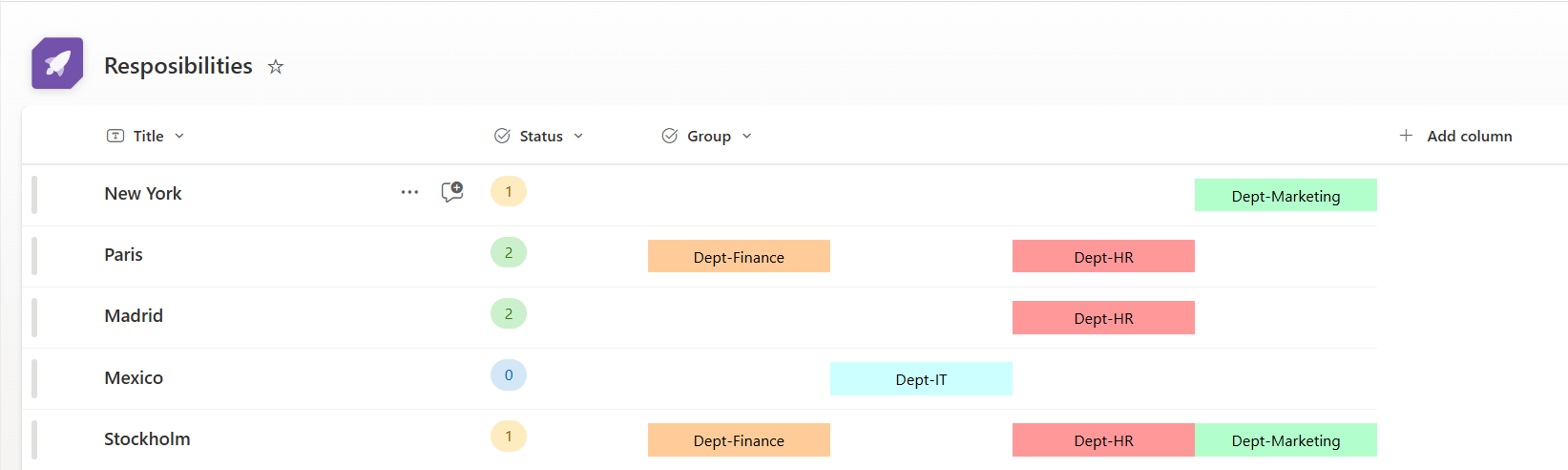
What I want is a refection of which department is selected - remember that this is a multiple choice field? Let’s make that happen!
- Go tou your list
- Select the multiple choice field > Column settings > Format this column
- Select Advanced mode
- Delete the code in the box
- Paste in this snippet
{
"$schema": "https://developer.microsoft.com/json-schemas/sp/v2/column-formatting.schema.json",
"elmType": "div",
"children": [
{
"elmType": "div",
"txtContent": "=if(indexOf(@currentField, 'Dept-Finance') >= 0, 'Dept-Finance', '')",
"style": {
"display": "inline-block",
"width": "25%",
"background-color": "=if(indexOf(@currentField, 'Dept-Finance') >= 0, '#ffcc99', 'transparent')",
"color": "black",
"text-align": "center",
"padding": "5px"
}
},
{
"elmType": "div",
"txtContent": "=if(indexOf(@currentField, 'Dept-IT') >= 0, 'Dept-IT', '')",
"style": {
"display": "inline-block",
"width": "25%",
"background-color": "=if(indexOf(@currentField, 'Dept-IT') >= 0, '#ccffff', 'transparent')",
"color": "black",
"text-align": "center",
"padding": "5px"
}
},
{
"elmType": "div",
"txtContent": "=if(indexOf(@currentField, 'Dept-HR') >= 0, 'Dept-HR', '')",
"style": {
"display": "inline-block",
"width": "25%",
"background-color": "=if(indexOf(@currentField, 'Dept-HR') >= 0, '#ff9999', 'transparent')",
"color": "black",
"text-align": "center",
"padding": "5px"
}
},
{
"elmType": "div",
"txtContent": "=if(indexOf(@currentField, 'Dept-Marketing') >= 0, 'Dept-Marketing', '')",
"style": {
"display": "inline-block",
"width": "25%",
"background-color": "=if(indexOf(@currentField, 'Dept-Marketing') >= 0, '#b3ffcc', 'transparent')",
"color": "black",
"text-align": "center",
"padding": "5px"
}
}
]
}
How does this list formatting work?
We separate into the number of <div> we need (note this is just an example, there were way more groups to select from) and that set the width to the percentage the <div> may consume. The colors are applied dynamically using indexOf(@currentField, 'Dept-Name') >= 0, which checks if the department is selected in the column. Each part of the cell shows the department name if it is selected. If the department is not selected, the <div> will be empty and have no background color (transparent).
Conclusion
Good old Send and HTTP request to SharePoint saved the day again! No need for app registrations, but a super straight forward flow that populates the multiple choice colum to our needs. Of course you don’t need to do groups, but can apply any array that you fits your use case!
Published on:
Learn moreRelated posts
Microsoft 365 & Power Platform Call (Microsoft Speakers) – July 28th, 2026 – Screenshot Summary
Call Highlights SharePoint Quicklinks: Primary PnP Website: https://aka.ms/m365pnp Documentation & Guidance SharePoint Dev Videos Issues...
Using SharePoint to Optimize Document Management in Dynamics 365
Microsoft Dynamics 365 provides robust customer relationship management capabilities, but when it comes to document management, many organizat...
M365 Copilot Agent now support multiple users
Microsoft 365 Copilot agents now support multiple owners, enabling collaborative management and reducing dependency on a single creator. This ...
Default visibility of additional profile card properties in Microsoft 365 profile cards
Microsoft 365 will default-display 11 profile card properties (e.g., Division, Role, Employee number) when populated, starting late August 202...
SharePoint Permissions in Power Automate
Which account really runs each action, and why a flow that works for you returns 403 for everyone else.
Restrict Unauthorized Users to Access CRM Data in SharePoint
In Dynamics 365 CRM, managing access to records is essential for maintaining security and protecting sensitive information. Integrating Dynami...
How to Enforce Role-Based Access Control (RBAC) in SharePoint from Dynamics 365 CRM
Microsoft Dynamics 365 CRM uses a structured Role-Based Access Control (RBAC) model to secure records at the user, team, business unit, and or...
Power BI, M365 Copilot And The Importance Of DAX UDFs
This was a big week for Power BI Copilot with the announcement of a new direction for the feature. If you haven’t done so already, read ...