
Automation for Large Scale Deployment of Agents on Servers managed by Azure Arc
|
There is a growing need for the deployment of tools or agents on on-premise servers in bulk. Its highly time consuming to manually deploy the agent in bulk.
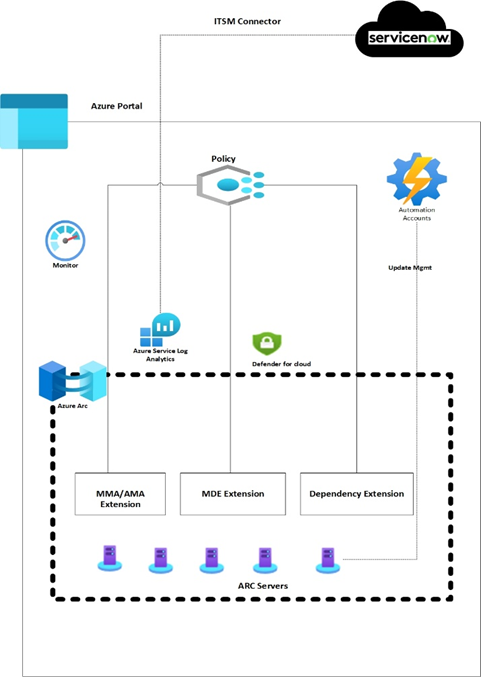
Microsoft Azure uses Azure Arc for the agents/tools/application deployments and can be combined with Azure policy for large scale mass deployment. In the below usecase Log Analytics and Dependency agents pushed via the policy.
Agents can be deployed manually using Azure portal, though for large environment, it is recommended to push these agents via custom Azure Policy or using PowerShell automation scripting.
|

|
Deployment using Azure Policy
Below usecase helps deploying Log Analytics and Dependency agents using Azure policy.
There are 2 core functionalities of Azure policy that allows the automation
- Creating Azure Policy Definition
- Policy assignment & Remediation
Creating Azure Policy Definition
In order to push through Azure policy the first step is to define policy rule as below, for Arc the resource type is Microsoft.HybridCompute, For Linux we just need to change imageOffer to “linux*”.
|
"policyRule": { "if": { "allOf": [ { "field": "type", "equals": "Microsoft.HybridCompute/machines" }, { "field": "Microsoft.HybridCompute/imageOffer", "like": "windows*" } If we want to deploy MMA only to certain Arc servers, then we can add a tag to the machine, for example “loganalytics:true” and define the below section in PolicyRule, then it will push MMA agent only to VMs where this tag is set as true. { "field": "tags.loganalytics", "equals": "true" } |

|
Define OMSagent for Linux & MMA for Windows.

Policy Assignment and Remediation
After creating policy definition create policy assignment to define scope, resource exclusion against the assignment defined in the first step.
Next is to create remediation task with managed identity to auto remediate all non-compliant Arc Machine.
For Dependency Agent, the policy rule will remain same as defined for MMA, define imageOffer “windows*” for windows server & “Linux*” for Linux respectively. Existence condition will change based on the extension type.
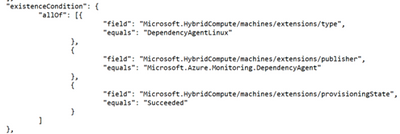
Define Parameter, Variables and resources as below:

Deployment using Powershell Script
We can also deploy MMA/OMSAgent extensions to Arc servers via PowerShell command for all the servers aligned within same resource group.
In order to run the below command, put all the VMs, separated per line, in a text file and create a loop logic as below
$VMname=get-content "C:\list.txt"
foreach($vm in $VMname){
$vm1 = Get-AzConnectedMachine -Name $vm -ResourceGroupName <RGNAME>
$Setting = @{ "workspaceId" = "workspaceId" }
$protectedSetting = @{ "workspaceKey" = "workspaceKey" }
New-AzConnectedMachineExtension -Name OMSLinuxAgent -ResourceGroupName "RGName" -MachineName $vm1.Name -Location "regionName" -Publisher "Microsoft.EnterpriseCloud.Monitoring" -Settings $Setting -ProtectedSetting $protectedSetting -ExtensionType "OmsAgentForLinux"
}
For windows change the value for the -ExtensionType parameter to "MicrosoftMonitoringAgent".
References
Azure Arc
Azure Arc helps client to bring their distributed workloads under single control planes using Azure Public Cloud. This will allow for direct enablement and integration with Microsoft Security tools and monitoring agents.
https://learn.microsoft.com/en-us/azure/azure-arc/servers/overview
Azure Policy
Azure policy helps assess organization compliance and overall environmental state. Azure policy allows to restrict usage of Azure resources based on compliance requirements.
https://learn.microsoft.com/en-us/azure/governance/policy/
About Author

Kritika Gupta
I am an experienced IT professional, focused on cloud technologies and DevOps. I specialize in Azure, Azure DevOps, Arc, AKS , PowerShell/CLI.
I am currently working at DXC Technology as an Azure Sr. Engineer in the Global India Azure Delivery Team. LinkedIn: "linkedin.com/in/kritika-gupta-609757b6"
Published on:
Learn moreWe can help you with Automation for Large Scale Deployment of Agents on Servers managed by Azure Arc
If you want help implementing, troubleshooting, or improving this product, contact us and we’ll point you in the right direction.
Related posts
Azure Adaptive Cloud Pre-Days at Microsoft Ignite 2024
As the excitement builds for Microsoft Ignite 2024, tech enthusiasts and professionals worldwide are eagerly anticipating the Azure Adaptive C...
Launching the Arc Jumpstart Newsletter: October 2024 Edition
👋 Welcome! We are excited to kick off this monthly newsletter, where you can get the latest updates on everything happening in the Arc Jumpst...
Announcing Public Preview of Windows Server Hotpatch enabled by Azure Arc
We’re excited to announce the Public Preview of Hotpatch enabled by Azure Arc for Windows Sever 2025 Datacenter and Standard editions! ...
Public Preview of Azure Container Storage enabled by Azure Arc Edge Volumes
Release Summary We are thrilled to announce the Public Preview of Azure Container Storage enabled by Azure Arc Edge Volumes, a groundbre...
Introducing ArcBox 3.0 General Availability
Today, the Arc Jumpstart team is excited to announce the general availability of ArcBox 3.0! Since it was first introduced in 2021, Ar...
CloudCasa for Azure Arc
Azure Arc is a platform that helps users build and develop their applications by extending Azure to their datacenters, edge, or even to multic...
Generally Available: Transition to WS2012 / R2 ESUs enabled by Azure Arc from Volume Licensing
Customers that have enrolled in WS2012/ R2 ESUs through Volume Licensing for Year 1 can transition to Azure Arc for Year 2 of the program. Ext...
Comparing feature sets for AKS enabled by Azure Arc deployment options
This article shows a comparison of features available for the different deployment options under AKS enabled by Azure Arc. ...
Increasing Security for SQL Server Enabled by Azure Arc
Back in November 2023, the least privileges deployment model was introduced as a public preview. After thorough testing, we are excited to ann...
Five Key Updates on WS2012 ESUs enabled by Azure Arc
We have a myriad of key updates for customers enrolled in WS2012/R2 ESUs enabled by Azure Arc! As we continue to refine and expand the offer, ...