
Azure Storage | How to Monitor Azure Storage Account Data | Part -I

Storage Analytics logging records details for both successful and failed requests for your storage account. They also enable you to review details of read, write, and delete operations against your Azure tables, queues, and blobs. With Storage logging you can investigate the reasons for failed requests such as timeouts, throttling, latency, and authorization errors.
Further there could be scenarios where you want to know who is writing, reading into their storage account, and which client application has access to the storage account. You may need this information for various business, security, and Audit purposes. This blog series will talk about the same.
- Enable and manage Azure Storage Analytics logs (classic)
- What is logged vs. what is not logged in Storage Analytics Logs
- Monitor Access to Storage Activity Logs
- How to analyse the Storage Analytic logs
Enable and manage Azure Storage Analytics logs (classic):
Azure Storage Analytics performs logging and provides metrics data for a storage account. You can use this data to trace requests, analyse usage trends, and diagnose issues with your storage account.
Storage Analytics logging records details for both successful and failed requests for your storage account. Storage Analytics logs enable you to review details of read, write, and delete operations against your Azure tables, queues, and blobs. They also enable you to investigate the reasons for failed requests such as timeouts, throttling, latency, and authorization errors.
Enable logs:
Storage Analytics logging is not enabled by default for your storage account. You can enable it in the Azure Portal as mentioned in official document or by using PowerShell. For guidance, see below.
Enable logs – via PowerShell
You can use PowerShell on your local machine to configure Storage Logging in your storage account by using the Azure PowerShell cmdlet
Get-AzureStorageServiceLoggingProperty to retrieve the current settings, and the cmdlet Set-AzureStorageServiceLoggingProperty to change the current settings.
Set-AzureStorageServiceLoggingProperty -ServiceType Blob -LoggingOperations Read,Write,Delete -PassThru -RetentionDays 7 -Version 2.0
For more details, please visit here: https://docs.microsoft.com/en-us/azure/storage/common/manage-storage-analytics
Download Storage Analytical Logs:
Customer can download the log files using a storage explorer or AzCopy
Download the log files – via Storage explorer
The easiest way to download the storage analytics logs is using through Storage Explorer.
Using the below steps, you would be able to download the logs.
- Sign-in to azure storage explorer using any of the approaches mentioned here - https://docs.microsoft.com/en-us/azure/vs-azure-tools-storage-manage-with-storage-explorer?tabs=wind...
- Select the storage of your interest.
- Select the $logs container.
- Click the “Download” button.

For converting the multiple storage analytical logs into a single csv file kindly refer to the below script: -
.\XLog2CSV.ps1 -inputFolder <input_folder_path> -outputFile <full_path_and_filename_of_csv>
Example:
XLog2CSV.ps1 -inputFolder c:\cases\Logs\2015\08\*.log -outputFile c:\cases\Logs\all_logs.csv
Sample output logs.csv:

Using AZ Copy:
To work with AZ Copy, you need to generate a SAS token from the portal Azure portal, We need Read and List permissions to $logs container. Ideally, set duration to about 72 hours so that we will have sufficient time to download the logs.
If you use SAS token to authorize access to blob data, then you can append that token to the resource URL in AzCopy command following the below syntax.
For AZ Copy download, CLI usage and how to use a SAS token, please refer to official documentation
What is logged vs. what is not logged in Storage Analytics Logs:
Storage Analytics logs detailed information about successful and failed requests to a storage service. This information can be used to monitor individual requests and to diagnose issues with a storage service. Requests are logged on a best-effort basis. This means that most requests will result in a log record, but the completeness and timeliness of Storage Analytics logs are not guaranteed.
The following types of authenticated requests and anonymous are logged:
- Successful requests
- Failed requests, including timeout, throttling, network, authorization, and other errors
- Requests using a Shared Access Signature (SAS) or OAuth, including failed and successful requests
- Requests to analytics data
- Successful requests
- Server errors
- Timeout errors for both client and server
- Failed GET requests with error code 304 (Not Modified)
The following types of requests are not logged:
- Requests made by Storage Analytics itself, such as log creation or deletion.
- Failed anonymous requests are also not logged.
A full list of the logged data is mentioned here Storage Analytics Logged Operations and Status Messages
Monitor Access to Storage Activity Logs:
When you have critical applications and business processes that rely on Azure resources, you want to monitor those resources for their availability, performance, and operation. This section describes how you can Monitor Access to the Storage Activity Logs
- Sign in to the Azure portal to get started.
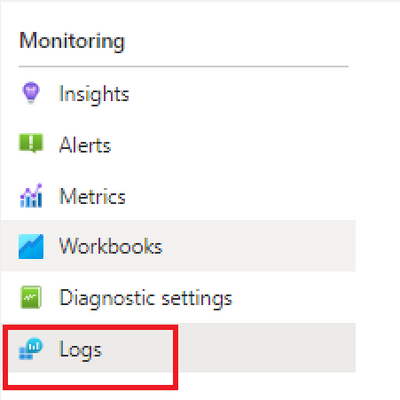
- Go to the Monitoring blade and then select the Logs links
- Click on the default workspace. If the workspace is not available, you will need to create a new Log Analytics workspace by clicking on the +Add button, as mentioned in the link here Create a Log Analytics workspace in the Azure portal - Azure Monitor | Microsoft Docs
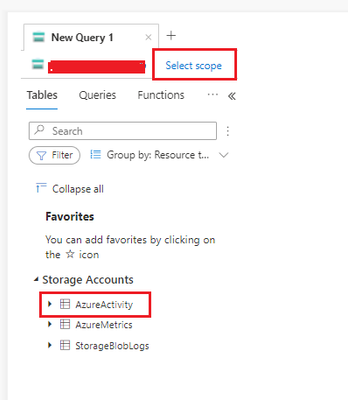
- In next page, you will see a query window, select your storage account in scope, and click on 'Azure Activity’
- Enter your query as mentioned here
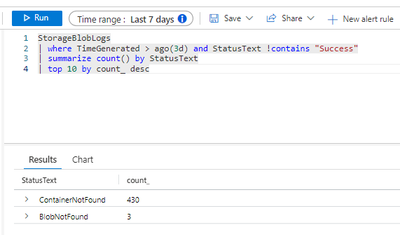
- you can also analyse the query results in chat view

For more details, please visit here: Monitoring Azure Blob Storage | Microsoft Docs
How to analyse the Storage Analytic logs:
Azure Storage provides analytics logs for Blob, Table, and Queue. The analytics logs are stored as blobs in "$logs" container within the same storage account.
The blob name pattern looks like "blob/2018/10/07/0000/000000.log." You can use Azure Storage Explorer to browse the structures and log files. The following screenshot shows the structure in Azure Storage Explorer:

In each log file, each line is one log record for one request divided by semicolon. The following log record shows as a sample of log entry format of version 1.0 and 2.0.
Version 1.0

Version 2.0
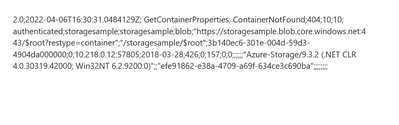
For Log entry format versions 1.0 and 2.0 please visit here:
https://docs.microsoft.com/en-us/rest/api/storageservices/storage-analytics-log-format
Hope this can be useful!
Published on:
Learn moreRelated posts
Azure Storage - TLS 1.0 and 1.1 retirement
Overview TLS 1.0 and 1.1 retirement on Azure Storage was previously announced for Nov 1st, 2024, and it was postponed recently to 1 year later...
Efficient Management of Append and Page Blobs Using Azure Storage Actions
Overview In Azure Storage, Blob Lifecycle Management (BLM) allows you to automate the management of your data based on rules defined by...
[Azure AI Search] Internal Server Error when creating CMK encrypted objects
Scenario Customers follow the Microsoft doc to create CMK encrypted objects (data source, index etc.), but get the 500 Internal Serv...
Optimizing Azure Table Storage: Automated Data Cleanup using a PowerShell script with Azure Automate
Scenario This blog’s aim is to manage Table Storage data efficiently. Imagine you have a large Azure Table Storage that accumulates logs from ...
Optimizing Azure Table Storage: Automated Data Clean-up using a PowerShell script with Azure Automat
Scenario This blog’s aim is to manage Table Storage data efficiently. Imagine you have a large Azure Table Storage that accumulates logs from ...
Restoring Soft-Deleted Blobs with multithreading in Azure Storage Using C#
Blob soft delete is an essential feature that safeguards your data against accidental deletions or overwrites. By retaining deleted data for a...
Performing simple Azure Table Storage REST API operations using curl command.
The blog provides guidance to perform simple Table Storage REST API operations such as Create table, Delete Table, Insert entity, Delete entit...
Bulk delete all the old jobs from the batch account
Deleting a Job also deletes all Tasks that are part of that Job, and all Job statistics. This also overrides the retention period for Task dat...
Utilizing Azure Storage and Runbooks for scheduled automated backups of Azure SQL Databases
In this article, we are going to provide detailed steps to create a scheduled Azure SQL Database backup to storage account using automation. T...
[Azure Service Bus] JMS messages getting dead-lettered
The article discusses a problem where numerous messages end up in the dead letter queue (DLQ) when the JMS service bus consumer connects to th...