
Azure portal January 2023 updates

Virtual Machines > Virtual Machine Scale Sets
Virtual Machines > Virtual Machine Scale Sets
Intune
Let's look at each of these updates in greater detail.
Virtual Machines > Virtual Machine Scale Sets
Virtual machine scale sets now default to Flexible orchestration mode
New virtual machine scale sets now default to using Flexible orchestration mode. Previously, new virtual machine scale sets used Uniform orchestration. Flexible orchestration mode allows you to achieve high availability at scale (up to 1000 VMs) by spreading VMs across fault domains in a region or within an Availability Zone. It also manages standard Azure VMs, allowing you to use multiple VM types and manage them with standard Azure VM APIs and commands.
In comparison, Uniform VM instances are exposed and managed via the Virtual Machine Scale Set VM API commands, which aren't compatible with the standard Azure IaaS VM API commands. Please refer to our documentation on Orchestration modes for Virtual Machine Scale Sets in Azure for more information.
To create a virtual machine scale set in the Azure portal:
1. Sign into Azure portal
2. Click on ‘Create a resource’
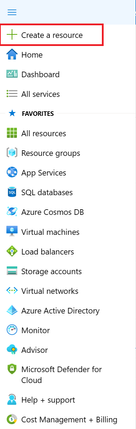
3. Search for ‘Virtual Machine Scale Sets’ and select ‘Create’

4. Scroll to the 'Orchestration' section. The default orchestration mode is now Flexible.

One of the main advantages of Flexible orchestration is that it provides orchestration features over standard Azure IaaS VMs, instead of scale set child virtual machines. Register and get started with Flexible orchestration mode for your Virtual Machine Scale Sets.
Virtual Machines > Virtual Machine Scale Sets
Force delete for Virtual Machines and Virtual Machine Scale Sets
When you delete a Virtual Machine, Virtual Machine Scale Set, or a scale set instance, you will now have the option to apply Force delete. Force delete will delete the VM as fast as possible while relieving the logical resources from the VM. It bypasses the graceful shutdown and some of the cleanup operations. Force delete should only be used when you are not intending to re-use virtual hard disks. It is only recommended if you do not intend to immediately re-use the MAC address on a new VM, as this is a physical resource that may take up to 10 min to free.
Enable Force Delete for VMs
1. Open the portal.
2. Select + Create a resource.
3. On the Create a resource page, under Virtual machines, select Create.
4. Make your choices on the Basics, then select Next : Disks >. The Disks tab will open.
5. Under Disk options, by default the OS disk is set to Delete with VM. If you don't want to delete the OS disk, clear the checkbox. If you're using an existing OS disk, the default is to detach the OS disk when the VM is deleted.
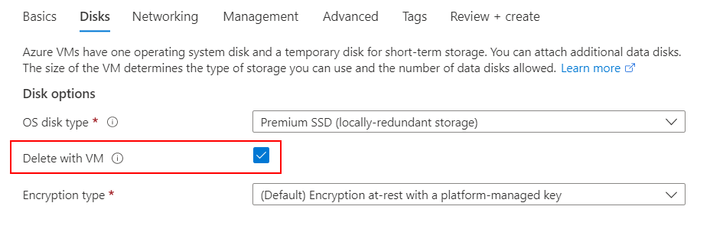
6. Under Data disks, you can either attach an existing data disk or create a new disk and attach it to the VM. If you choose Create and attach a new disk, the Create a new disk page will open and you can select whether to delete the disk when you delete the VM.
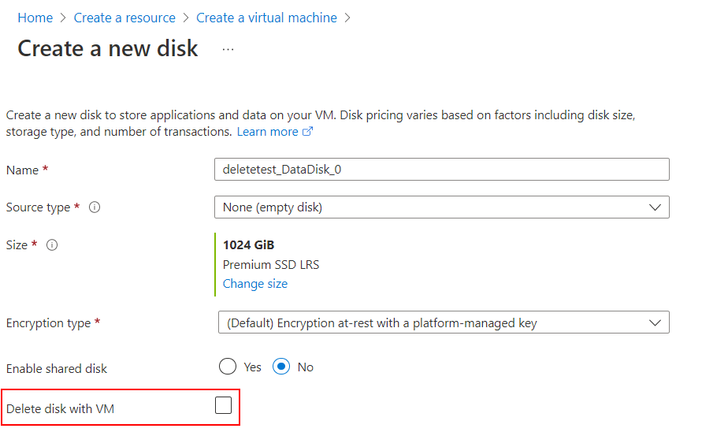
If you choose to Attach an existing disk, you'll be able to choose the disk, LUN, and whether you want to delete the data disk when you delete the VM.

7. When you're done adding your disk information, select Next : Networking >. The Networking tab will open.
8. Towards the bottom of the page, select Delete public IP and NIC when VM is deleted.

9. When you're done making selections, select Review + create. The Review + create page will open.
10. You can verify which resources you have chosen to delete when you delete the VM.
11. When you're satisfied with your selections, and validation passes, select Create to deploy the VM.
Force Delete a Virtual Machine
When you go to delete an existing VM, you will find an option to apply force delete in the delete pane.
- Open the portal.
- Navigate to your virtual machine.
- On the Overview page, select Delete.
- In the Delete virtual machine pane, select the checkbox for Apply force delete.
- Select Ok.
Force Delete a Virtual Machine Scale Set
When you go to delete an existing scale set with Uniform orchestration, you will find an option to apply force delete in the delete pane.
- Open the portal.
- Navigate to your Virtual Machine Scale Set.
- On the Overview page, select Delete.
- In the Delete Virtual Machine Scale Set pane, select the checkbox for Apply force delete.
- Select Ok.
Updates to Microsoft Intune
The Microsoft Intune team has been hard at work on updates as well. You can find the full list of updates to Intune on the What's new in Microsoft Intune page, including changes that affect your experience using Intune.
Azure portal “how to” video series
Have you checked out our Azure portal “how to” video series yet? The videos highlight specific aspects of the portal so you can be more efficient and productive while deploying your cloud workloads from the portal. Check out our most recently published videos.
Next steps
The Azure portal has a large team of engineers that wants to hear from you, so please keep providing us your feedback in the comments section below or on Twitter @AzurePortal.
Sign in to the Azure portal now and see for yourself everything that’s new. Download the Azure mobile app to stay connected to your Azure resources anytime, anywhere. See you next month!
Published on:
Learn moreWe can help you with Azure portal January 2023 updates
If you want help implementing, troubleshooting, or improving this product, contact us and we’ll point you in the right direction.
Related posts
Azure Landing Zones - Policy Refresh Q1 FY25
ALZ - Policy Refresh Q1 FY25 is here! As you may be aware, the ALZ team release cadence is now on quarterly basis to help customers and partne...
Custom Policy- Reusable Logs Templates
Reusable Templates for Sending Logs to Log Analytics Workspace Challenge: When it comes to developing custom policies for sendin...
Enhancements to Azure Monitor Baseline Alerts for Azure Landing Zones
Introduction Welcome to our latest blog post where we dive into a number of exciting new key updates, highlight the new portal accelera...
Introducing the Azure Policy Community Repo
Introducing the Azure Policy Community Repo What is the Azure Policy Community Repo? The Azure Policy Community Repo is a collaborativ...
General Availability: Vaulted backups for Azure Blob Storage
We are excited to announce the general availability of vaulted backups for Azure Blob Storage. Vaulted backups can help you achieve complete p...
Azure Update Manager to support CIS hardened images among other images
What’s coming in by end of July 2024: Azure Update Manager will add support for 35 CIS hardened images. This is the first time that Update Man...
Mastering your cloud journey: Essentials to Innovating, Migrating and Modernizing, on Azure
We are living during a time of rapid growth in AI technologies and seeing cloud complexity increase as a result of those advanced workloads, w...
Public Preview Announcement: Azure Policy Built-in Versioning
Welcome to a new era of policy management, where policy definitions are more agile, adaptable, and accessible than ever before! We are thrille...
Announcing Azure Monitoring Agent support in Azure Landing Zones
Introduction Hello and welcome to another blog post about Azure Landing Zones, the best practice framework for accelerating your cloud...
Announcing the General Availability of Change Actor
Change Analysis Identifying who made a change to your Azure resources and how the change was made just became easier! With Change Analys...