
Operations Task Management Feedback Loop

Background
Last month, I wrote about how work items in Azure DevOps can be automatically created as you receive alerts from Azure (Microsoft Sentinel Alerts and Incidents & Microsoft Defender for Cloud Alerts, Recommendations and Compliance Assessments).
In this post, I'm sharing how you can
- Create a webhook that will close/dismiss the Azure alert/incident as you resolve the work item (State = Resolved/Closed), and
- Reactivate the Azure alert/incident when the work item reopens (State != Resolved/Closed)
Solution Idea
Here's the high level diagram for this solution, see here for the logic app code.
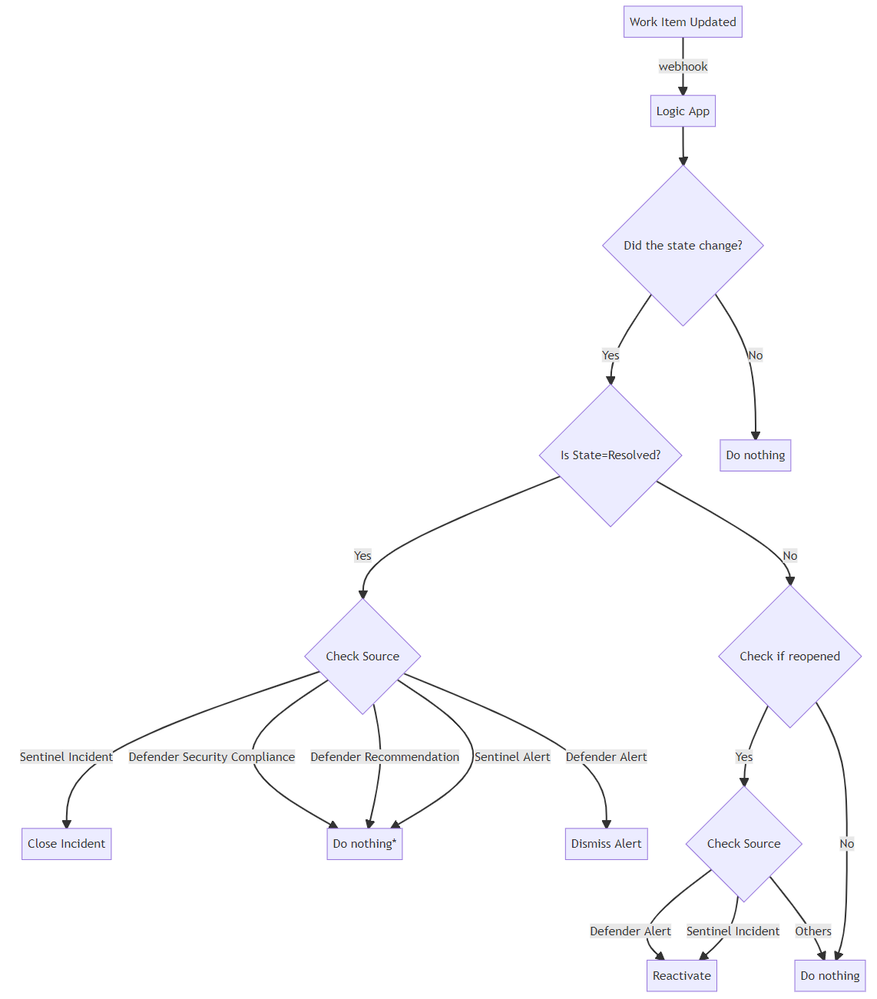
Note: The following alert types do not need to be dismissed
- Sentinel Alerts
- Alerts that are associated to incidents will be dismissed together with the incident
- Alerts that are unassociated to incidents will age out according to the workspace retention policy
- Defender Recommendation
- The recommendation list will update as actions are made.
- Defender Security Compliance
- The security compliance assessment will update as actions are made.
Logic App Playbook
The above diagram can be implemented in a number of ways. In this post, I'm sharing how this was implemented using Azure Logic Apps. Azure Logic Apps is an Azure service that enables engineers to develop automated workflows and integrations using low-code/no-code rapidly.
If you are simply interested in deploying this logic app, you may head to this GitHub Repo, deploy from there, and skip to this article's next section. Otherwise, here are the details of how this was implemented.
Webhook Payload
After receiving the HTTP request, the first step is to parse the HTTP body using the Parse JSON action. Here are the steps I took to arrive at the below schema.
- Create a blank Logic App with an HTTP request trigger. (Take note of this URL for use in Azure DevOps)
- Change the state of a work item to trigger the webhook.
- Capture the payload sent by this webhook
- Remove properties that are not needed
This eventually led to this schema:
{
    "properties": {
        "detailedMessage": {
            "properties": {
                "html": {
                    "type": "string"
                },
                "markdown": {
                    "type": "string"
                },
                "text": {
                    "type": "string"
                }
            },
            "type": "object"
        },
        "eventType": {
            "type": "string"
        },
        "id": {
            "type": "string"
        },
        "message": {
            "properties": {
                "html": {
                    "type": "string"
                },
                "markdown": {
                    "type": "string"
                },
                "text": {
                    "type": "string"
                }
            },
            "type": "object"
        },
        "notificationId": {
            "type": "integer"
        },
        "publisherId": {
            "type": "string"
        },
        "resource": {
            "properties": {
                "fields": {
                    "properties": {
                        "System.State": {
                            "properties": {
                                "newValue": {
                                    "type": "string"
                                },
                                "oldValue": {
                                    "type": "string"
                                }
                            },
                            "type": "object"
                        }
                    },
                    "type": "object"
                },
                "id": {
                    "type": "integer"
                },
                "revision": {
                    "properties": {
                        "fields": {
                            "properties": {
                                "Custom.ReferenceLink": {
                                    "type": "string"
                                },
                                "Custom.Source": {
                                    "type": "string"
                                },
                                "Custom.SourceID": {
                                    "type": "string"
                                },
                                "Custom.SourceType": {
                                    "type": "string"
                                },
                                "Custom.SubscriptionId": {
                                    "type": "string"
                                },
                                "System.ChangedBy": {
                                    "type": "string"
                                },
                                "System.Description": {
                                    "type": "string"
                                },
                                "System.Reason": {
                                    "type": "string"
                                },
                                "System.State": {
                                    "type": "string"
                                },
                                "System.WorkItemType": {
                                    "type": "string"
                                }
                            },
                            "type": "object"
                        },
                        "id": {
                            "type": "integer"
                        },
                        "rev": {
                            "type": "integer"
                        }
                    },
                    "type": "object"
                },
                "workItemId": {
                    "type": "integer"
                }
            },
            "type": "object"
        },
        "resourceContainers": {
            "properties": {
                "project": {
                    "properties": {
                        "baseUrl": {
                            "type": "string"
                        },
                        "id": {
                            "type": "string"
                        }
                    },
                    "type": "object"
                }
            },
            "type": "object"
        },
        "subscriptionId": {
            "type": "string"
        }
    },
    "type": "object"
}
The main properties that are used are:
- properties-->resource-->workItemId
- properties-->resource->fields-->properties-->System.State
- properties-->resource-->revision-->properties-->fields-->properties-->
- Custom.Source
- Custom.SourceType
- Custom.SourceID
- Custom.SubscriptionId
- System.State
- System.ChangedBy
- properties-->resourceContainers-->project
Feedback loop for Sentinel Incidents
To close/reopen Sentinel Incidents, we are using the Update Incident action of the Microsoft Sentinel Logic App connector.
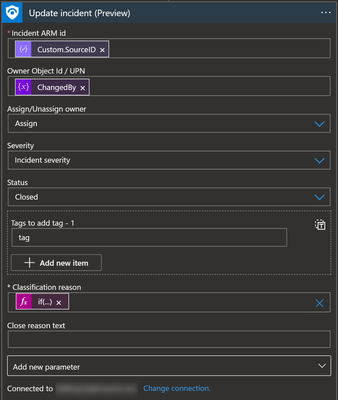
The classification reason is an expression where I assume that if the State=Closed, then it is a true positive. Otherwise, it's undetermined.
if(equals(body('Parse_HTTP_request_JSON_body')?['resource']?['revision']?['fields']?['System.State'],'Closed'),'TruePositive - SuspiciousActivity','Undetermined')
Additionally, we can add a comment to the incident using the Add Comment to Incident) action.
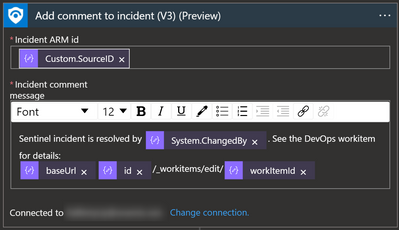
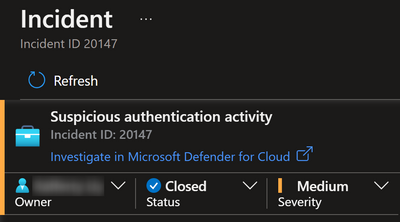
After closing a workitem, the result will look like this:
Feedback loop for Defender Alerts
To dismiss/reactivate Defender Alerts, we are using the HTTP action of the HTTP connector. This is mainly because there is no Microsoft Defender logic app action that we can use directly at the time of this article.
The REST APIs that are relevant to our use case are as follows:
- Dismissing alerts: https://docs.microsoft.com/en-us/rest/api/securitycenter/alerts/update-subscription-level-state-to-dismiss
- Reactivating alerts: https://docs.microsoft.com/en-us/rest/api/securitycenter/alerts/update-subscription-level-state-to-activate
Before calling these APIs, please make sure that:
- The Logic App identity is configured to have a Managed Identity.
- The managed identity is given Security Admin permissions at the subscription level. See here.
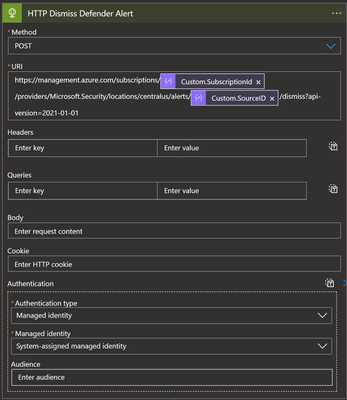
After closing a workitem, the result will look like this:
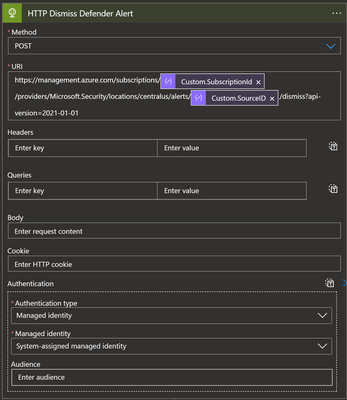
Note: For reactivating alerts, call the
/activateAPI instead.
Azure DevOps Webhooks
Webhooks for work item changes are triggered by configuring Service Hooks in the Azure DevOps --> Project --> Settings.
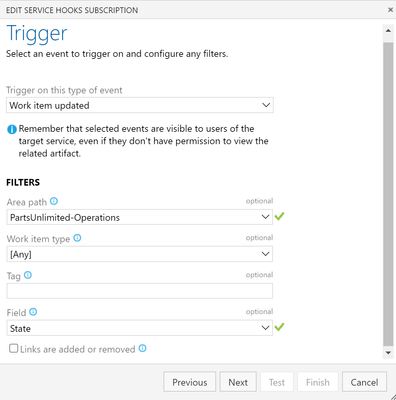
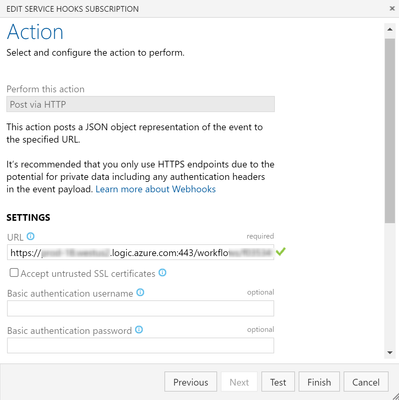
Since we are only interested in state changes, we are using the trigger Work item updated on State change. This will call the logic app REST API when a work item is updated, using the URL that was generated from the logic app above.
Here are some screenshots of how it is configured:
Tip: When you are making updates to the custom process that will affect the payload schema, you will have to Edit/Save the this configuration for Azure DevOps to recognize the changes and send an updated payload.
Conclusion
In summary, using Azure Logic Apps and Azure DevOps, we have achieved a way for the operations team to more effectively track and task manage alerts coming from Microsoft Sentinel and Microsoft Defender for Cloud using Azure Boards.
- In my last post, I shared how we can automate the creation of Azure DevOps work items from Azure
- In this post, I shared how to resolve/dismiss alerts as work item states are resolved.
Published on:
Learn moreWe can help you with Operations Task Management Feedback Loop
If you want help implementing, troubleshooting, or improving this product, contact us and we’ll point you in the right direction.
Related posts
End-to-End Full-Stack Web Application with Azure AD B2C Authentication: A Complete Guide
Application Overview The purpose of this sample application is to demonstrate the usage of Azure Active Directory B2C (Azure AD B2C) for authe...
Complex Data Extraction using Document Intelligence and RAG
Section 1: Introduction Historically, data extraction from unstructured documents was a manual and tedious process. It consisted of a c...
Harnessing Generative AI with Weaviate on Azure Kubernetes Service and Azure NetApp Files
Table of Contents Introduction Prerequisites Install Weaviate Approximate Nearest Neighbor (ANN) Benchmarks ANN Benchmarks Setup ANN Benchmark...
Securing Containerized Applications with SSH Tunneling
As cloud engineers and architects embrace containerization, ensuring secure communication becomes paramount. Data transmission and access cont...
Exploring AI Agent-Driven Auto Insurance Claims RAG Pipeline.
Introduction: In this post, I explore a recent experiment aimed at creating a RAG pipeline tailored for the insurance industry, specificall...
Azure NetApp Files now stores sensitive data DoD IL5 compliant in Azure US Government regions
Table of Contents Introduction Why Azure NetApp Files? DoD IL5 compliance in Azure Government Azure NetApp Files reaches feature parity betwee...
Data Intelligence End-to-End with Azure Databricks and Microsoft Fabric
This Azure Architecture Blog was written in conjunction with Isaac Gritz, Senior Solutions Architect, at Databricks. The Data Inte...
AI Studio End-to-End Baseline Reference Implementation
Azure AI Studio is designed to cater to the growing needs of developers seeking to integrate advanced AI capabilities into their appli...
Mastering AI adoption: Essentials to building, operating and optimizing genAI workloads on Azure
Mastering your AI adoption: Essentials to building, operating and optimizing genAI workloads on Azure As the demand for scalable, efficient AI...
Optimize Azure Stack HCI with the Well-Architected Framework
Azure Stack HCI is a hyperconverged infrastructure (HCI) solution that provides storage, network, and compute resources in on-premises...